Website Migration Checklist: Moving to a New CMS Without Losing Traffic



A website migration protects its search traffic best when every old URL has a planned destination before launch. List every URL, map each one to its closest new page, carry over the titles and content that rank, keep staging out of search, test redirects, canonicals and tracking on launch day, then watch Search Console and analytics until the new URLs have replaced the old ones.

Your migration plan starts by naming the type of move, because each one carries a different level of risk. Changing your CMS, your URL structure or your domain changes the addresses Google has indexed, and every one of those needs a redirect plan. Moving to a new host with the same URLs is lower risk, and switching to HTTPS or www has its own simpler rules.
| Type of migration | Do URLs change? | Use Google's Change of Address tool? | Main risk |
|---|---|---|---|
| New content management system (CMS) or platform, for example WordPress or Shopify | Usually yes | No, unless the domain also changes | Lost pages, lost metadata, broken tracking |
| New URL structure on the same domain | Yes | No | Missing or chained redirects |
| New domain or subdomain | Yes | Yes | Signals not transferred if redirects or the tool are missed |
| HTTP to HTTPS, or www to non-www | Yes, the protocol or host | No | Mixed versions left live |
| New hosting, same URLs | No | No | Downtime and server errors during the switch |
The Change of Address column comes from Google's own rules: the tool is for moving to a different domain or subdomain, and Google says not to use it for HTTP to HTTPS moves, www changes or moving pages within one site. If your CMS move also changes the URL structure, you are in two rows at once, which is why the URL map below matters so much.
Yes. Any move that changes URLs asks Google to recrawl, reindex and transfer signals, and Google says to "expect temporary fluctuation in site ranking during the move". Pages without a redirect or an equivalent new page can drop out of results.
We covered what this means for a redesign in our guide to refreshing or rebuilding a website. This checklist goes one level deeper: the order of work, who owns each step and what to test before, during and after launch.
Before anything moves, record how the current site performs and list every address it has. The benchmark tells you after launch whether traffic has recovered, and the URL list is the raw material for every redirect. A page that is not on the list will not get a redirect.
Google's site-move guide suggests starting with your most important URLs, and reminds you to include embedded content such as images, videos, JavaScript and CSS files, plus downloads like PDF brochures. Pull the list from three places so nothing slips through:
Export 12 months of organic traffic and conversions for your top pages at the same time, and note the keyword rankings of the queries that bring leads. That export is your benchmark. Take a full backup of the files and database at the same stage, so you can roll back if launch goes wrong.
A redirect map is a two-column list: every old URL on the left, its closest new equivalent on the right. Google calls this preparing a URL mapping, and it is the single document the whole migration depends on. Build it in a spreadsheet so your developer can import it directly.
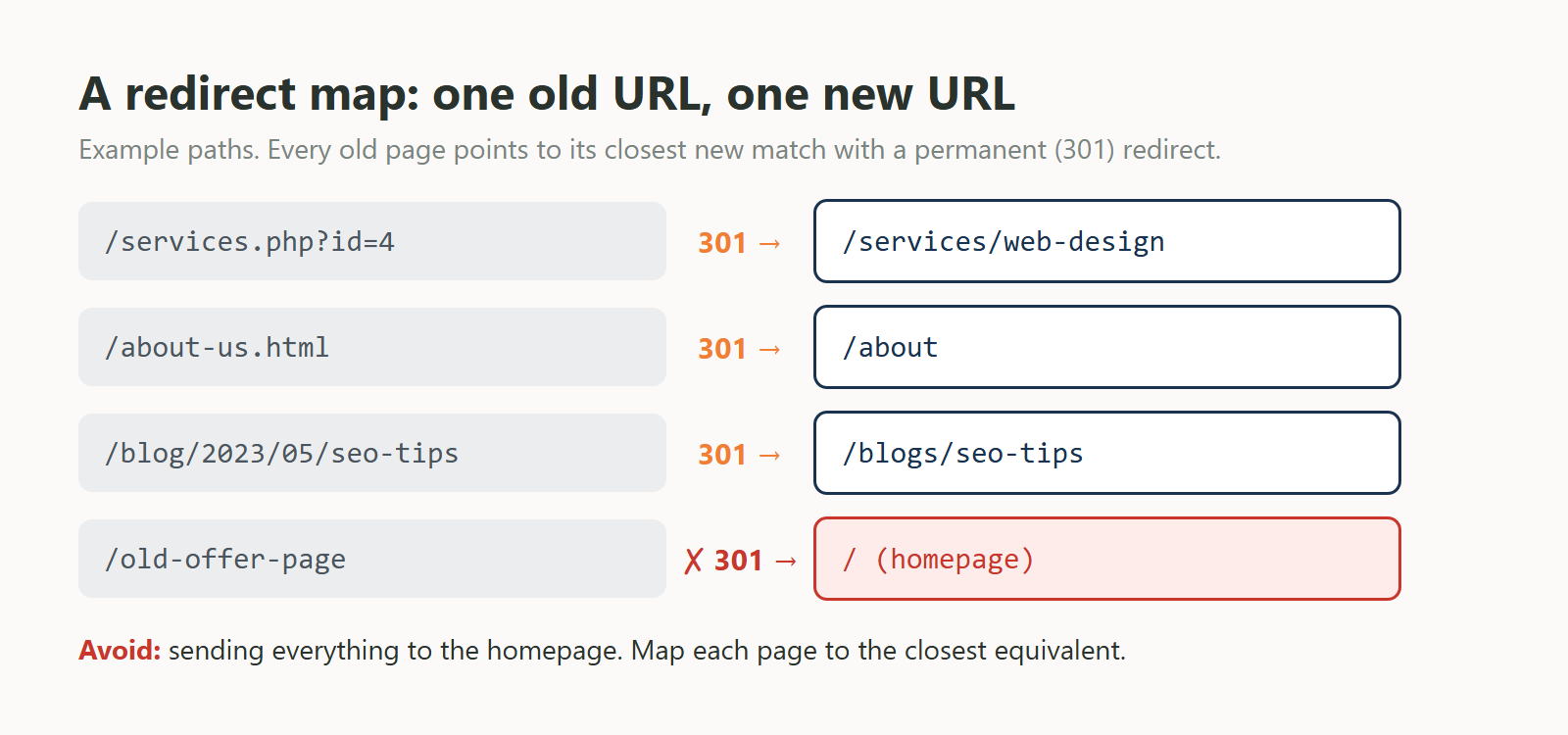
Follow three rules when you build the map:
When a CMS migration rebuilds templates, titles, meta descriptions, headings and body copy are easy to lose or shorten. Carry them over deliberately for every page that earns search traffic, then improve them later in small steps.
Check these for each important page before launch:
The new site needs to be tested somewhere, but that staging copy must not appear in Google before launch. A password or login on the staging server is the most reliable way to keep it private. If you use a noindex tag instead, keep a list of every page that has it. Google notes that some site owners block crawling during development, and it reminds you to remove those blocks when the move starts.
One detail trips up many teams: Google says a noindex rule placed in robots.txt is not supported. Noindex has to be a meta tag or an HTTP header on the page itself. Removing every staging block is on the launch-day list below for that reason.
Use permanent, server-side redirects for pages that have moved for good. Google explains that permanent redirects show the new URL in search results while temporary ones keep showing the old one, and that server-side redirects are the type it is most likely to interpret correctly.
| Redirect | Google treats it as | Use it for a migration? |
|---|---|---|
| 301 (moved permanently) | Permanent | Yes, the standard choice |
| 308 (permanent redirect) | Permanent | Yes |
| 302, 303, 307 | Temporary | No, the old URL stays in results |
| Meta refresh (0 seconds) or JavaScript redirect | Permanent, but less reliable than server-side | Only if the server cannot redirect |
| Meta refresh (more than 0 seconds) | Temporary | No |
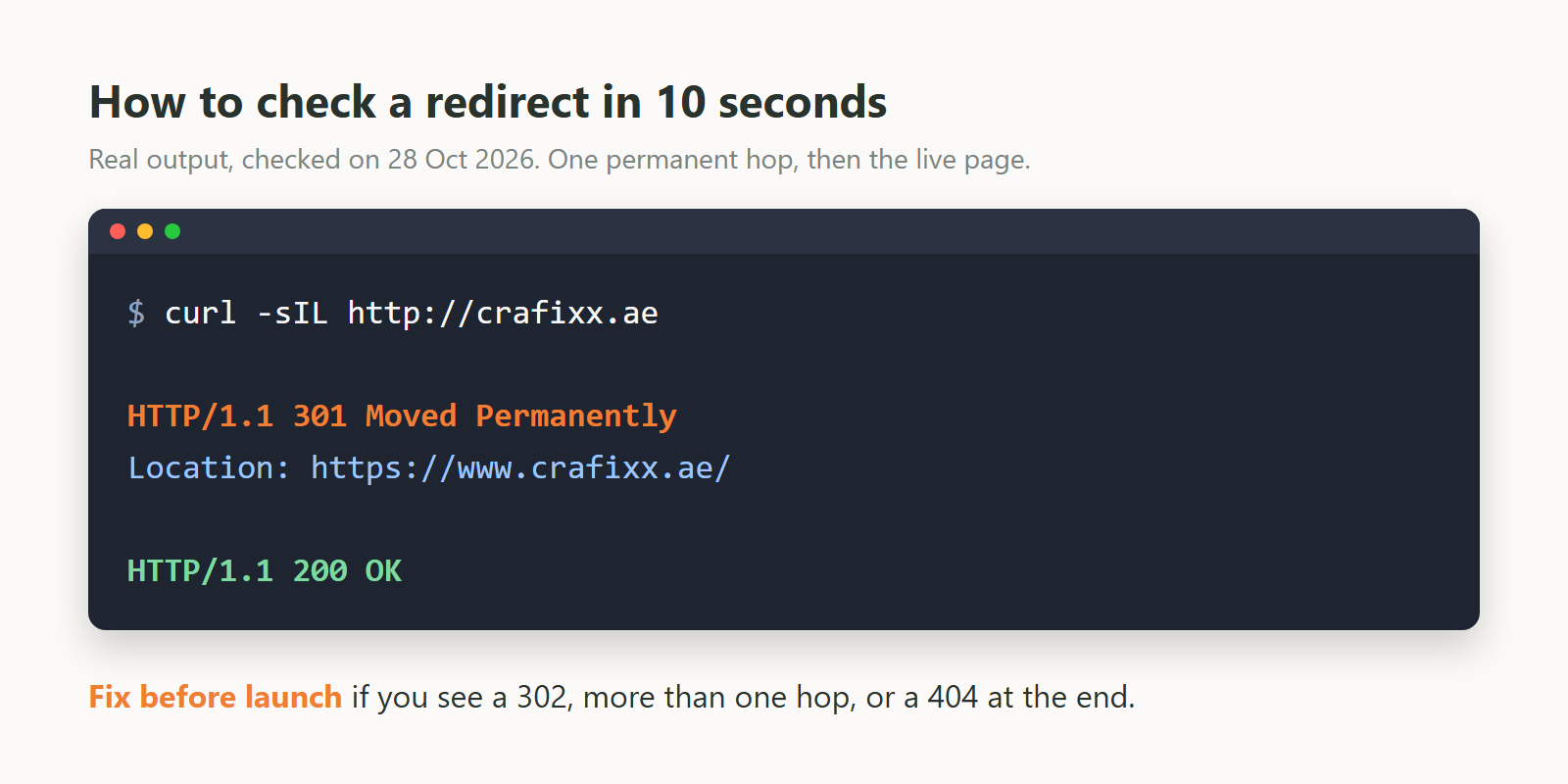
Test a sample of redirects before launch and again after. Each old URL should answer with a single 301 and land on a page that returns 200. Here is what that looks like in a terminal, checked on our own domain:
If you see a 302, two or more hops in a row, or a 404 at the end, fix it before launch. Free crawlers can run the same check across your whole redirect map in one pass.
Every page on the new site should carry a canonical tag that points to its own new URL. Google recommends a self-referential canonical on each page, and lists redirects and canonical tags as its two strongest signals for which URL to show. The common migration mistake is a template that still points canonicals at staging or at the old domain.
Make sure your signals agree. Google warns against giving one URL in the sitemap and a different URL in the canonical tag for the same page. After launch, the redirect, the canonical tag and the sitemap should all name the same new URL.
A new CMS usually means a new template, and tracking code lives in templates. Install analytics and your tag manager on staging, then test every event that matters, especially enquiries, before the site goes live. If tracking breaks on launch day, you lose the data you need to judge the migration.
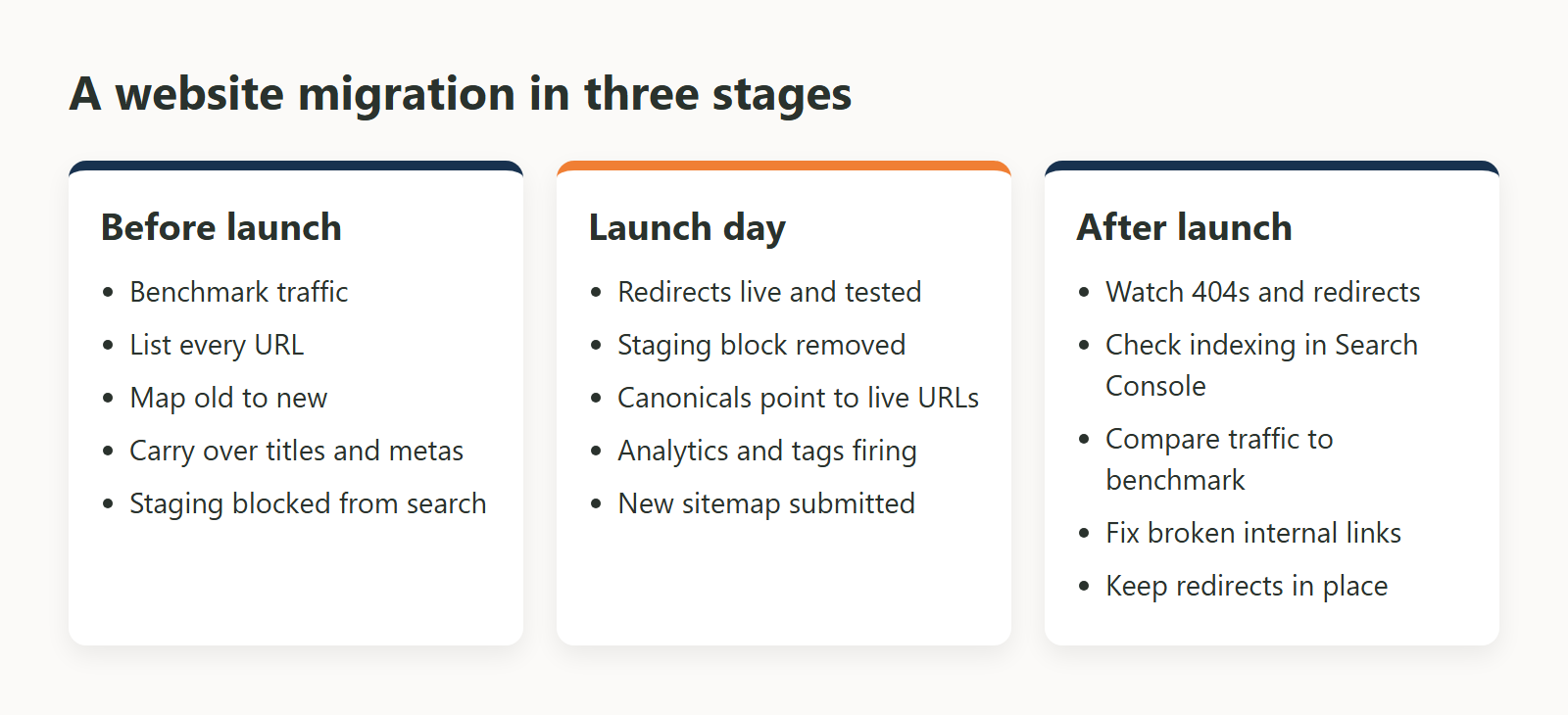 Launch day is about switching things on in the right order and checking each one. Turn on redirects, remove staging blocks, confirm canonicals and tracking, and submit the new sitemap. Most of these take minutes, and each one is easy to miss when everyone is busy. Google also suggests timing the move for a lower-traffic period if you can.
Start checking the site straight after launch. Google suggests submitting both the old and the new sitemaps in Search Console: the new one starts with zero pages indexed and the old one falls over time as Google moves its index to the new URLs. Google also says redirect warnings on the old sitemap are normal.

How long the move takes depends on your server and how many URLs you have, Google says, so there is no fixed finish date. The move is done when the new URLs carry the traffic the old ones did.
Here is every check in one place, split by stage, with the reason it matters and who usually owns it.

| # | Check | Why it matters | Who usually owns it |
|---|---|---|---|
| 1 | Export 12 months of organic traffic and top pages from Search Console and analytics | A baseline to compare against after launch | SEO |
| 2 | Crawl the current site and list every URL, including PDFs, images and other downloads | Google asks for embedded content and downloads to be included in the move | Developer |
| 3 | Add URLs from Search Console, analytics and backlink reports that the crawl missed | Pages outside the menu still earn visits and links | SEO |
| 4 | Decide what happens to each URL: keep, merge or drop | Every old URL needs a destination or a deliberate 404/410 | Business owner |
| 5 | Build the redirect map: pair each old URL with the best-matching new page | A one-to-one map is the core of the move | SEO and developer |
| 6 | Pages you drop return 404 or 410, not a redirect to the homepage | Google asks for a 404 or 410 for content not moved | Developer |
| 7 | Carry over titles, meta descriptions, H1s and body copy of pages that rank | The words that earned rankings move with the URL | Content |
| 8 | Carry over image alt text and file names for images that get search traffic | Images that earn search traffic have their own URLs | Content |
| 9 | Update internal links on the new site to the new URLs | Google asks for internal links to point to new URLs | Developer |
| 10 | Add a self-referencing canonical tag to every new page | Google recommends a self-referential canonical | Developer |
| 11 | Keep staging out of search (login or noindex) and list every page to unblock at launch | Google says to remove blocks that were only needed for the move | Developer |
| 12 | Map language versions and hreflang if the site has more than one language | Each language version needs its own new URL | Developer |
| 13 | Install analytics and tag manager on staging; test in GA4 DebugView and GTM Preview | Tracking breaks quietly during rebuilds | Analytics |
| 14 | Check lead events (forms, calls, WhatsApp clicks) fire on staging | You need to see enquiries from day one | Analytics |
| 15 | Prepare the new XML sitemap and keep a list of the old URLs | Both sitemaps let you monitor the move in Search Console | Developer |
| 16 | Verify the old and new sites in Search Console, and confirm verification will survive the move | Google lists this as a site-move step | SEO |
| 17 | Take a full backup of files and database, and write a rollback plan | You can restore the old site if launch goes wrong | Developer |
| 18 | Schedule the move for a lower-traffic period, if possible | Google suggests timing the move for lower traffic | Business owner |
| # | Check | Why it matters | Who usually owns it |
|---|---|---|---|
| 1 | Turn on redirects and test samples: 301, one hop, final page 200 | Server-side permanent redirects are read most reliably | Developer |
| 2 | Remove noindex and robots.txt blocks used only for staging | The most common launch-day mistake to check | Developer |
| 3 | Check canonical tags point to the live new URLs | Google asks for this once redirects are live | Developer |
| 4 | Submit the new sitemap in Search Console, alongside the old one | Helps Google discover the new URLs | SEO |
| 5 | Use the Change of Address tool only if the domain or subdomain changes | Not for http to https, www changes or moves within one site | SEO |
| 6 | Watch analytics real-time reports and confirm tags fire on the live site | Real-time reporting helps in the first phase | Analytics |
| 7 | Send a test enquiry through every form on the live site | Forms and notification emails often change with the platform | Developer |
| # | Check | Why it matters | Who usually owns it |
|---|---|---|---|
| 1 | Check the Search Console Page indexing report every week | Shows indexed and non-indexed pages with reasons | SEO |
| 2 | Compare indexed counts for the old and new sitemaps | New URLs should rise as old URLs fall | SEO |
| 3 | Review server logs and crawl reports for 404s and redirect errors | Catches missed URLs early | Developer |
| 4 | Compare organic traffic and leads with the benchmark | Expect some temporary movement; look for pages that do not recover | SEO |
| 5 | Ask important linking sites to update links to the new URLs | Saves a redirect hop for visitors and crawlers | SEO |
| 6 | Keep redirects in place long term | Google needs time to pass signals from old URLs to new ones | Developer |
Most migration work happens before launch: the redirect map, the content inventory and the tracking tests. On our CMS development projects, we plan each migration around a content audit, URL mapping and post-launch monitoring, whether the move is to WordPress, Shopify or Kentico. If you would rather someone keep watching after launch, that is part of website maintenance.
Ask Us Anything!
For a medium-sized site, Google says it can take a few weeks or more for the new URLs to start replacing the old ones in results, and longer for larger sites. The speed depends on how many URLs you have and how fast your server is. Allow time before launch for the URL inventory, the redirect map and testing, and keep monitoring after launch until the new URLs carry the traffic the old ones did.
Some temporary movement is normal, and Google says to expect it. Lasting losses usually come from missing redirects, lost content or blocked pages, which is what this checklist is built to catch.
Only if your domain or subdomain changes. Google says not to use it for HTTP to HTTPS moves, www changes, or moving pages within the same site.
No. Redirect each old page to the new page that covers the same topic. If a page has no equivalent, let it return a 404 or 410, as Google recommends for content you are not moving.
No. Google treats 302, 303 and 307 as temporary and keeps showing the old URL. Use 301 or 308 for pages that have moved for good.
You can, but every extra change makes problems harder to trace. If you do both, carry over the content of ranking pages first and change it after the move has settled.
We use cookies to help you navigate efficiently and perform certain functions. You will find detailed information about all cookies under each consent category below.
The cookies that are categorised as "Necessary" are stored on your browser as they are essential for enabling the basic functionalities of the site.
We also use third-party cookies that help us analyse how you use this website, store your preferences, and provide the content and advertisements that are relevant to you. These cookies will only be stored in your browser with your prior consent.
You can choose to enable or disable some or all of these cookies but disabling some of them may affect your browsing experience.