Why Your Website Gets Traffic but No Enquiries: Technical Problems to Fix



When a website gets visits but no enquiries, check the path before the pitch. An enquiry has to survive six steps: the page loads on a phone, the visitor finds a way to ask, the form submits, the notification reaches a person, the lead lands in your CRM and analytics records it. Test each step in that order. The first one that fails is your leak.

Most advice on this problem goes straight to copy, offers and calls to action. Those matter, but they are guesses until you have ruled out the technical faults that stop a ready buyer from reaching you, or stop you from seeing that they tried. This guide is a diagnosis, not a redesign brief. It follows the journey an enquiry takes through your lead generation setup, and for each step you get the symptom, a test you can run yourself and what to fix.
In this guide:
Start by asking whether people try to enquire and fail, or never try at all. If enquiries stopped on a particular date, after a new plugin, theme or migration, suspect something technical first. If they were never there, check both. A few quick comparisons tell you which story you are in.
A word on website conversion rate: here it simply means enquiries divided by visits, for the same pages over the same period. We have not found a neutral, current benchmark worth quoting, so compare the site with itself: by page, by device, and before and after each change.
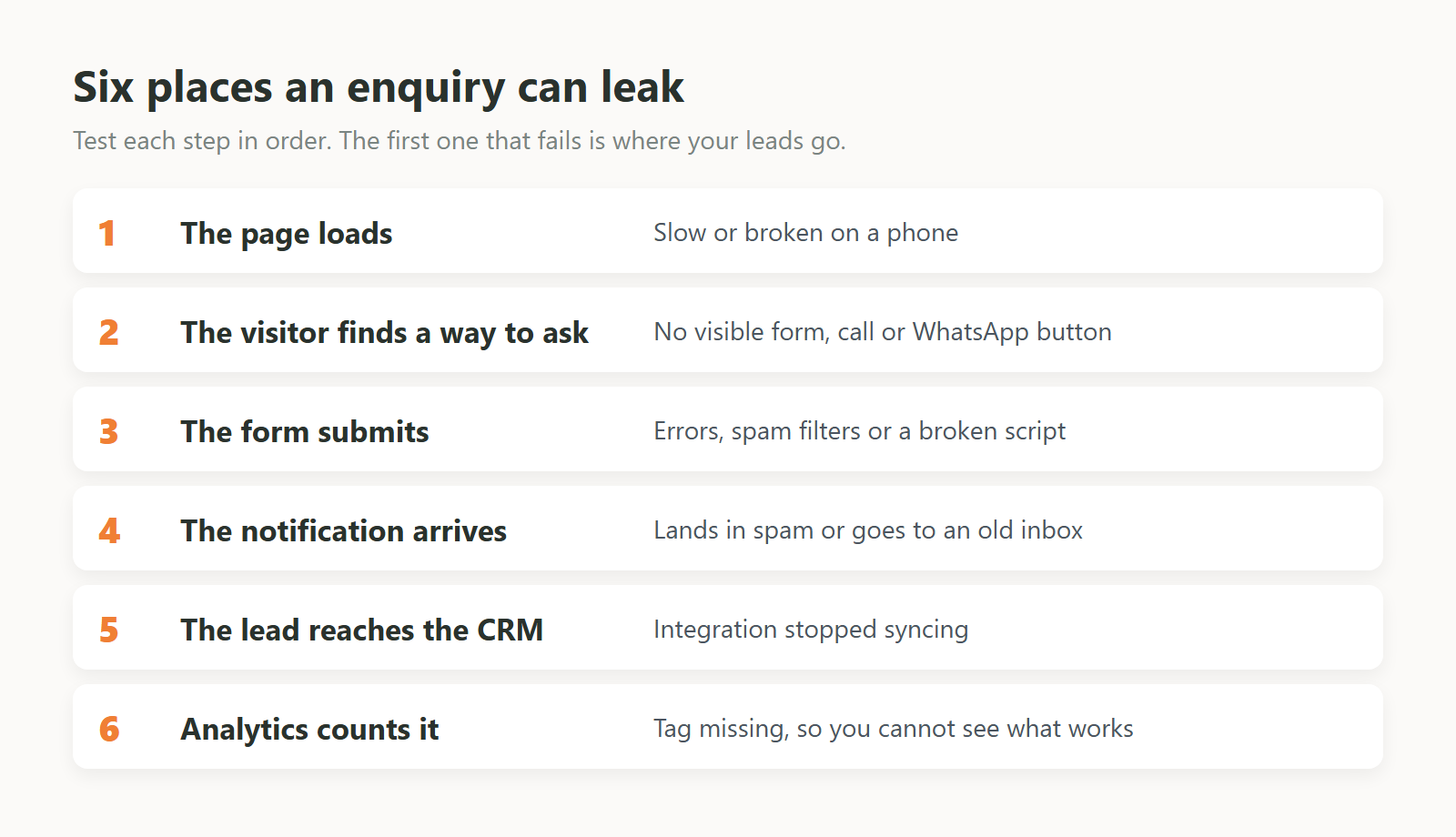
Use this table as a map. Each row is one place an enquiry can leak, in the order a visitor meets them. Run the test in the middle column; if it fails, the right-hand column is your fix. The sections below explain each row in more detail, with the official benchmarks behind it.
| Symptom | How to test it | What to fix |
|---|---|---|
| Visitors leave mobile landing pages before they scroll to the offer | Search Console Core Web Vitals report for mobile; PageSpeed Insights on your top landing pages | Resize and compress images, cut unused scripts and widgets, stop the layout jumping as it loads |
| Poor mobile usability. Mobile visits are high, mobile enquiries close to zero | On a real phone, try to call, start a WhatsApp chat and fill in the form with one thumb | Visible contact buttons on mobile, tap-to-call links, small banners instead of full-screen popups |
| Broken form. Submissions drop to zero on a date, or customers say they sent a message | Submit the form on desktop and phone, once with a mistake on purpose, once with a long message | Fix script errors, show clear errors that keep typed text, make sure spam protection lets real people through |
| Missing notifications. The visitor sees a thank-you message, yet no email arrives | Send a test, then check the receiving inbox, its spam folder and the form's recipient list | Use an authenticated sending service, add a second recipient, store a copy of every entry |
| CRM delivery failure. Sales sees fewer leads than the website received | Send a test lead with a unique name and find it in the CRM; compare a month of entries with CRM records | Reconnect and remap the integration, set alerts for failed syncs, pass the source page into the CRM |
| Tracking errors. Analytics shows no enquiries, or more than the inbox | Watch GA4 DebugView or Realtime while you submit a test; check Tag Manager Preview | Fire one lead event only after a successful submission, mark it as a key event, track calls and WhatsApp clicks |
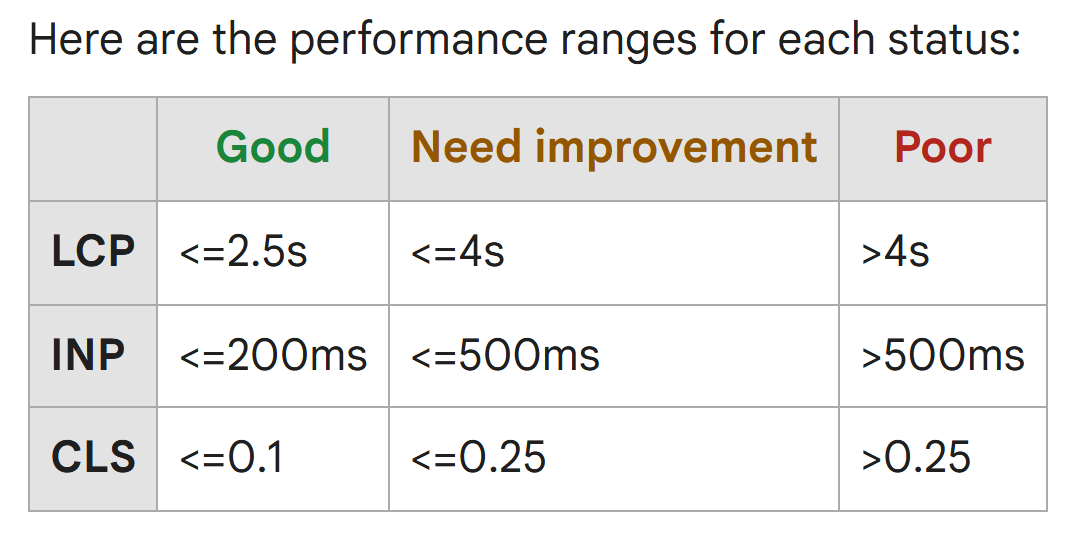
If a slow website takes too long to load on a phone, visitors can leave before they reach the part that asks for an enquiry. Google's Core Web Vitals set three targets to check: the main content should appear within 2.5 seconds, the page should respond to a tap in under 200 milliseconds, and the layout should stay stable.

Planning a rebuild anyway? Our website redesign guide covers why that project is the best time to deal with speed at the root.
It is easy to judge a website on the laptop it was built on, but Google indexes and ranks what phones see (mobile-first indexing), so the mobile page is the real page. If the contact form, phone number or WhatsApp button is hidden, cramped or covered on a phone, the interest you worked to attract stops there.
A form can look perfect and still fail. A script error, an over-strict spam filter or a rule that rejects real phone numbers will stop an enquiry without warning anyone. The only reliable test is to fill it in yourself, the way a customer would, on more than one device and browser.
How the form is built matters too. A 2014 study reported in NN/g's form usability article (2016) compared two kinds of form: on forms built to usability guidelines, 78% of submissions were error-free on the first attempt; on forms that ignored them, the figure was 42%.
This guide keeps forms to one step. For the design side (labels, number of fields, keyboards and error messages), see our contact form design checklist.
On the websites we develop, form submissions are verified before launch sign-off, along with payment flows and API endpoints. A form nobody has tested end to end is only an assumption.
A successful submission only means the website accepted the message. Someone still has to receive it. Notification emails go missing for ordinary reasons: an old address, a colleague who has left, a full mailbox or a spam folder. Until you test the whole trip to a real inbox, you cannot be sure your enquiries are being read.
If your sales team works from a CRM, a lead that never arrives there may never get a call. A form-to-CRM link can stop working when a password or access key changes, a field is renamed or a connector is switched off. The test is simple: send a lead and look for it where sales will look.
We connect landing page forms to platforms like Zoho CRM, HubSpot, Salesforce and Mailchimp, and a test lead like the one above is the quickest way to check any connection of this kind.
Sometimes the enquiries exist and the reports are wrong. If the lead event fires on a button click instead of a successful submission, or the tag was lost in a redesign, analytics shows the wrong number and you end up improving the wrong pages. Check that every lead action is recorded once, and only when it really happens.

Then the leak is in the match between visitors and pages, not in the plumbing. That is useful to know: you can now work on the message with confidence that a ready buyer can reach you. Look at which searches bring people in, whether the page answers them, and whether the page gives a reason to ask now.
This is where conversion rate optimization starts: one change at a time, measured with the tracking you fixed in Step 6. If the pages themselves need rethinking, that is a website design question rather than a technical fix.
Run this list now and again after every change to the website: a plugin update, a new theme, a new form or a migration. Each item takes only minutes, and together they cover the whole path an enquiry travels. Tick an item only after you have tested it today, not because it worked last month.
Each fault in this guide can appear the day something changes, so the fix is a habit, not a one-off project. Rerun the checklist after every update to the site, form tool, email service or CRM, and put a monthly test submission in the calendar. Treat a quiet inbox as a signal to test, not to wait.
Prefer to hand these checks to someone else? They fit naturally into routine website maintenance work.
Ask Us Anything!
Either visitors cannot enquire, or they do not want to yet. Rule out the technical causes first: slow pages on mobile, contact options hidden on a phone, a broken form, notifications going to spam, leads not reaching the CRM, or tracking that does not record enquiries. If all of those pass, look at whether the traffic and the page match.
Submit it yourself on a desktop and a phone, then follow the enquiry all the way: the confirmation message, the notification email in the right inbox (check spam too), the stored entry, the CRM record and one lead event in analytics. If any of those is missing, the form is not fully working.
Start with how they are sent. Mail from the web server's own mail function, rather than a provider that signs mail for your domain, is the first thing to check. Google's sender guidelines ask sending domains to use SPF, DKIM and DMARC, and unauthenticated messages can be filtered to spam or refused.
Speed decides whether visitors stay long enough to see your offer at all. Google's Core Web Vitals give clear targets: main content within 2.5 seconds, a response to a tap in under 200 milliseconds and a stable layout. Check your mobile results in Search Console first.
There is no single figure that fits every business, and we have not found a neutral, current benchmark worth quoting. Measure your own rate (enquiries divided by visits) by page and by device, and watch how it changes after each fix.
Yes. Some visitors would rather call or message than fill in a form, so a report that counts only form submissions misses part of your enquiries. Track each lead action as its own event in GA4 and mark the important ones as key events.
We use cookies to help you navigate efficiently and perform certain functions. You will find detailed information about all cookies under each consent category below.
The cookies that are categorised as "Necessary" are stored on your browser as they are essential for enabling the basic functionalities of the site.
We also use third-party cookies that help us analyse how you use this website, store your preferences, and provide the content and advertisements that are relevant to you. These cookies will only be stored in your browser with your prior consent.
You can choose to enable or disable some or all of these cookies but disabling some of them may affect your browsing experience.